
Gift coupons and their use
A gift coupon is a highly effective business tool because it brings in money before the service is actually delivered, which helps you manage and grow your business efficiently. The business receives the money at the moment of purchase, even if the customer only comes weeks or months later. This is an especially strong argument for getting through slower off-season periods or for planning ahead with greater certainty.
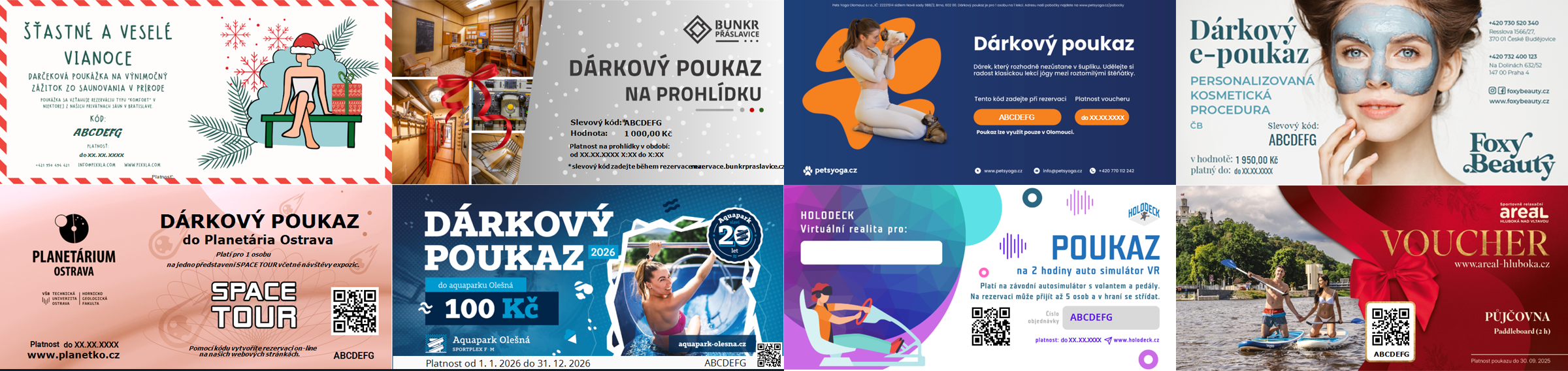
When a coupon is given as a gift, it also becomes a marketing tool and a recommendation that someone else made on your behalf. With their gift, the buyer introduces your business to someone who may not know it yet and brings a new customer right to your door. For the recipient, the first visit is risk-free because it is already paid for, and then it is up to you to make them book the next time on their own, turning a gift into a regular customer.
Coupons also give a reason to come back to those who already know you. A season ticket or a coupon for further use of a service keeps customers connected and turns a one-time visit into a long-term loyal client.
Coupons sell all year round, but most of all ahead of occasions when people are looking for a gift. The strongest period is Christmas 🎄 – it is a good idea to have your offer ready at the beginning of November, as many people buy gifts well in advance. On the other hand, in the last days before Christmas Eve you can make the most of the fact that the coupon arrives by e-mail instantly (scenario 7), which often makes it the ideal last-minute gift 🎁😉
Other occasions when it is especially worth thinking about offering gift coupons for sale:
- Valentine's Day, Mother's Day, International Women's Day, etc. – experiences for two and relaxation coupons (scenarios 1 and 3),
- birthdays, anniversaries and name days all year round – a coupon for an amount or with a dedication (scenarios 1 and 2),
- the start of the season or a new year – season tickets and discounted offers (scenarios 4 and 5),
- the end of the year in companies – bulk corporate gifts and thank-yous (scenario 6).
The REENIO system can sell coupons online directly as part of the reservation page. After payment, the system automatically generates a coupon code and sends it to the customer as a PDF, which they can print or forward and give as a gift. We always recommend creating a test code to verify that the coupon you are going to sell is set up correctly and uses the required design, the correct discount amount, validity period, etc.
Selling and accepting coupons requires the PREMIUM subscription and active payments (Settings – Payments, credits and VAT – Payment gateways).
Remember that it is essential for coupons to be linked with events – this is what defines which coupon can be applied to which offer and reservation. The link is made using Coupons groups and assigning them to events, or as a default group that applies to all events.
Coupon usage scenarios
The overview below describes various ways to make the use and sale of gift coupons part of your business and of the reservation system. The individual scenarios can serve as inspiration, and in practice the features illustrated in several scenarios are commonly combined into a complete system of coupons, season tickets, promo codes, etc.
- Gift coupon with a dedication and custom design
- Coupon for an amount
- Coupon for a specific experience
- Discounted price and limited offer
- Season ticket
- Corporate and bulk coupons
- Last-minute purchase
- Selling a coupon on site via the cash desk
- Coupon as a promo code
- Restricting reservations to coupon holders
1. Gift coupon with a dedication and custom design
The coupon plays the role of a personal gift, not just a discount code in an e-mail. When buying, the customer can enter a personal dedication, which is printed directly into the coupon PDF in your prepared graphic style.
How to do it:
- In Forms – Coupon forms, create a form with the fields you want from the buyer, for example Dedication (multiline text) and Recipient's name (single-line text). Each field shows a "Field code for coupon design", which you then copy and insert into the graphic design of the coupon.
- In Coupons – Coupon design, create a design (from scratch or from one of the offered templates). Upload your own background image with your logo and insert the value from the custom form element, where you enter the field code from the form. When a specific coupon is created, the values entered by the customer at the time of purchase will appear here. Add further elements and text information such as QR code, code validity and discount.
- In Coupons – Coupons, edit the specific coupon (it does not matter which type it is) and set Coupon design and Form to the items created above.
- Create a test code for the coupon; in the context menu of the edit button you can download the PDF for this code and check the actual look of the coupon.
Tip: The ⅓ A4 format fits into a standard envelope when printed. The Crop page to given format option then ensures that the generated PDF contains only the coupon and not the whole A4 page. For different occasions, simply copy the design and adjust only the background and graphics.
2. Coupon for an amount
If you offer various services at different prices and the buyer does not know exactly what the recipient would like, a coupon for a monetary amount is the safest choice. Offer several values (for example €20, €50 and €100) that can be bought as a gift coupon and then drawn on within a specific reservation, either at once or gradually.
How to do it:
- In Coupons – Coupons, create a coupon of the Gradually drawable amount or One-time drawable amount type. Depending on the type, the recipient can draw the value on one or more reservations. It is up to you which business model you choose and what is more convenient for your customers. Set the necessary parameters and above all the value the coupon will cover (the value to be used when creating reservations).
- In Coupons – Coupon sale – Offer of codes to purchase, create a separate offer for each coupon with the corresponding value, with its own Price, which states how much the customer pays for the coupon (the price does not have to match the value).
- In the Groups of code offers tab, you can group the offers (a group can have a title, description and image) so that customers can easily find their way around. These groups determine how the offer is structured on the reservation page.
Tip: In Coupons – Settings, turn on Enable shopping cart – the customer can then buy several coupons, even of different types, in one order.
3. Coupon for a specific experience
A coupon with a clear purpose is often very suitable as a specific personal gift. If you offer services such as "Massage for two" or "Climbing lesson for beginners", it is a more emotional gift for the recipient than just a monetary amount. It also makes the decision easier for the buyer if they know what the recipient would like.
How to do it:
- In Coupons – Coupons groups, create a group and select it in the settings of the relevant events. The coupon can then be applied only to these events, which is especially important for the percentage coupon type!
- In Coupons – Coupons, create a coupon of the Percentage discount type, set the value to 100% and include the coupon in this group. This option is universal, so the coupon will remain applicable even if the price of the service changes in the future. You can also use the types with an exact amount.
- In the Reservation restrictions section, you can narrow the coupon down to a specific Reserved price variant or to the Minimum/Maximum reserved capacity, which ensures that the coupon is applied correctly only when it matches the offer.
Tip: An apt Public name and Offer description sell the coupon better than a generic "Gift coupon". Describe what the recipient will experience and under what conditions.
4. Discounted price and limited offer
Coupons can also be used for motivation. A time-limited or quantity-limited deal motivates customers to buy now and at a better price, even if they plan to use the service later. Typical offers are along the lines of "Buy a coupon worth €50 for €45 – only until the end of the month".
How to do it:
- In Coupons – Coupons, create a coupon of the type that matches your usage model and set the Discount value / Coupon value (for example €50 for the One-time drawable amount type).
- In Coupons – Coupon sale, create an offer where the purchase price is lower (for example €45). Of course, make sure the offer is linked to the right coupon.
- Set the Offer validity to the period (from – to) during which the coupon can be bought at the discounted price. This setting has no effect on how long an already purchased coupon can be redeemed.
- For a limited edition of coupons, you can also turn on Limit the number of sold codes and enter the Maximum number of sold codes. The The voucher must be paid by option ensures that unpaid orders do not block the overall limit of coupons for sale.
Tip: The period within which the recipient must use the coupon is set in the offer using the Period of validity from purchase field (in days). Each coupon then has its own validity counted from the date of purchase.
5. Season ticket
A season ticket for multiple entries or lessons does not have to be just a gift – it can be a tool that brings customers back again and again. In practice, this means revenue in advance and regular attendance of loyal customers.
How to do it:
- In Coupons – Coupons, create a coupon with the value of one entry (the coupon type depends on your model – whether it is a fixed price per lesson or a percentage discount) and set the Maximum number of uses per code (for example to 10, i.e. the coupon can be used for 10 reservations).
- Use Count the number of uses based on to decide whether uses are deducted based on reserved capacity or on the number of reservations. The second option allows the holder to bring another person along on one entry, whereas the first option means that only one use is deducted per reservation regardless of how many people are booked – so the conditions of the events need to be set up carefully.
- In Coupons – Coupon sale, create an offer and set its Price as the number of uses multiplied by the unit price of the event. It is often a good idea to set the price lower than the cost of the individual entries combined, because savings are the main argument for buying.
Tip: If you mainly sell season tickets, you can change the Name for 'Coupons' in Coupons – Settings, for example to Season ticket code. However, the name changes for all coupons across the whole system.
6. Corporate and bulk coupons
Companies often look for suitable gifts for their employees and clients, and a gift coupon can be an interesting alternative to a bottle of wine or a box of chocolates. In addition, they usually buy dozens of the same coupon at once. The system can sell a batch of coupons at once and create a separate PDF for each according to the defined design. In this case, it is a good idea to also offer delivery of printed coupons via the form and adjust the price accordingly.
How to do it:
- Create a coupon and a coupon sale offer based on the coupons you generally offer. On the reservation page, the buyer will then be able to purchase a larger number of the same coupon.
- In Forms – Coupon forms, create a form that uses a field with a price. By checking this field during the purchase, the customer indicates that they want the printed coupons sent by post. At the same time the price is adjusted, e.g. an extra €2 per piece for printing. You can also add further fields to the form, for example for the delivery address.
Tip: If a company wants to buy coupons outside the system on an invoice, you can easily create a specific coupon just for them in the administration (including a specific design) and generate the corresponding number of codes and PDFs with the individual codes. Using Export application of codes, you can later show the company how many coupons its employees actually used.
7. Last-minute purchase
Because the standard way of delivering a coupon to the customer is electronic, as a PDF by e-mail, it is the ideal last-minute gift that comes in handy for anyone who, for example, forgot about a present.
How to do it:
- Create a coupon and a coupon sale offer based on the coupons you generally offer and that customers can buy.
- For the item in the overview under Coupons – Coupon sale – Offer of codes to purchase, you will find the link to the offer option under the arrow next to the edit button. Share the link on social media, in a newsletter or as a QR code on a poster, together with an invitation to grab a quick gift.
- If a time limit is set for the offer, check that it matches the current situation so that customers can still buy the coupon.
Tip: You can see all sold coupons in the Purchased codes tab, or in the list of codes of a specific coupon, where they are marked with a shopping cart icon.
8. Selling a coupon on site via the cash desk
Although online purchase is a big advantage, for some customers it is also important to be able to buy a coupon in person at the reception or on the premises, in paper form. In the administration, you can sell it just as easily as a customer can online, and record the payment in the cash desk. You can also print the coupon straight away, or have coupons for sale prepared in advance – you generate codes within the coupon and print them using the assigned custom coupon design; in this case the payment process is expected to take place outside the system.
How to do it:
- First of all, you need to have the cash desk feature active and, if needed, a connection to a payment terminal. You will find all this under Settings – Payments, credits and VAT – Cash desk and Payment terminal. EET support is also available here.
- In Coupons – Coupon sale – Offer of codes to purchase, click the Purchase button in the row of the specific offer.
- Fill in the customer's details and, if applicable, the coupon form, for example a dedication as requested by the customer.
- Accept the payment in cash or via the terminal.
- The system generates the code and the coupon as a PDF, which is automatically sent to the customer's e-mail address; alternatively, you can print the coupon right away.
Tip: If the coupon form has the Do not fill in the administration option turned on, it will not be shown when selling on site. If you want a dedication for on-site sales too, leave this option turned off.
9. Coupon as a promo code
A coupon does not have to be just a gift that is sold and bought by customers. It works equally well as a marketing tool in the form of a promo code that is given out to future customers, as a reward, etc. The key to applying and using coupons is the code itself – since it is plain text, it can easily be used in a newsletter, on social media, on a flyer or as a thank-you to loyal customers in person. One easy-to-remember code (for example SPRING15) can be used by multiple customers within a precisely defined period and for specific events and services, and you know exactly how many reservations the campaign brought.
How to do it:
- In Coupons – Coupons, create a coupon of the Percentage discount type (for example 15%) or the One-time drawable amount type (for example a €10 discount) and include it in a coupons group that is assigned to the events for which the promo code should apply.
- Set the coupon's Validity and choose whether the Validity applies to the creation date of the reservation or the start date of the reservation. The second option is ideal for filling slower periods – the customer gets the discount only on reservations that take place, for example, in January and February.
- In the coupon detail, use the new code button to create your own code with an apt, easy-to-remember name. Set the Maximum number of uses per code according to how you want to limit the use of this single code.
- Pay attention to which benefit can be applied to which reservations; if needed, protect it by setting the Minimum reservation price for applying a coupon and by turning on Prohibit use in combination with another coupon.
Tip: Promo codes can also be sent to customers automatically. In Settings – Custom messages, you can attach a randomly generated coupon code to a message – for example as a thank-you after a visit or as a birthday gift. You can then evaluate the success of the campaign using Export application of codes.
10. Restricting reservations to coupon holders
A coupon can also work as an identification or membership card. Some events and the creation of reservations can be made available only to those who hold a valid code – for example member events, VIP reservations or pre-sales for loyal customers. Without entering the code, a reservation for such an event cannot be completed. At the same time, this kind of coupon does not have to bring any price benefit and can be used effectively even when the reservation is not paid for or is free of charge.
How to do it:
- In Coupons – Coupons groups, create a group and turn on Require code during making a reservation. Then assign this group to the events that should be available only to those who have a coupon code.
- In Coupons – Coupons, create a coupon and include it in this group. If the code should only grant access without affecting the price, choose the Without discount type. If it should also pay for the reservation, choose another type depending on the situation.
Tip: Coupon codes can also be restricted by ownership using the The code can only be redeemed by its owner option. Codes assigned to a specific customer can be found in their detail in the Coupon codes tab. Customers can also see their codes in their customer account after signing in, depending on the Make the list of codes available to the customer during the reservation setting. The The code can only be redeemed by its owner option requires the customer to be signed in when reserving – so also consider requiring registration on the reservation page.
 booking system