
Software tools
SmartEmailing
Do you want to work effectively with your customers and provide them with regular information about your services, discounts or promotions? Then we recommend using the popular Czech product SmartEmailing. This tool will help you attract new customers and re-sell your existing customers and offer their services. How? It allows you to efficiently maintain customer contact, send nice campaigns with ready-made templates, set up an automatic communication process, or view clear statistics to see who clicks and reads your e-mails.
How to use SmartEmailing?
- Easily create newsletters with information for your customers (pre-designed templates optimized for different mail clients and mobile devices).
- Manage campaigns and send newsletters to customers.
- Monitoring and evaluating the success of individual campaigns.
- Automation and optimization of processes, such as sending by set time, by the time when the addressee reads most often e-mails, resending campaigns, etc.
- Smart segmentation and personalization where you can reach different groups of your customers, address them in an e-mail by name, or send a holiday wish.
- ... and much more.
The reenio reservation system provides direct integration with SmartEmailing so you can easily manage and share your customers' contacts between the two systems. The connection can be made manually (using the export of customers) or automatically (adding a contact always after registration or reservation). Then it is up to you what e-mail campaigns you will send to your customers.
I want to know more about SmartEmailing
As a reenio system user, you have a gift from us - the possibility to use 25% discount on ordering services in the SmartEmailing system. More in the reservation system administration.
Link settings
If you have already created a SmartEmailing account and have access to the administration, you need to get data for reenio connection. You can find this information in the main menu My Account - API Key. After clicking on the Add API Key and entering the application name to link (eg reenio), a special character string is displayed. You copy it together with your login name (displayed on the page with a list of API keys in the SmartEmailing administration) to the settings in the reenio reservation system.
Settings - General settings - Third-party
You have connected both systems for further use. Note: already created API keys are not accessible again in SmartEmailing system, if you need to re-link your applications, you must re-create the key and repeat the process.
Set up and start the export
The actual export of contacts from the reservation system can be accessed on the Customers page and by selecting the button Export Customers - SmartEmailing. The export information and export settings options are displayed. If the link between the two systems is not set, the export option is not possible.
Customers - Export - SmartEmailing
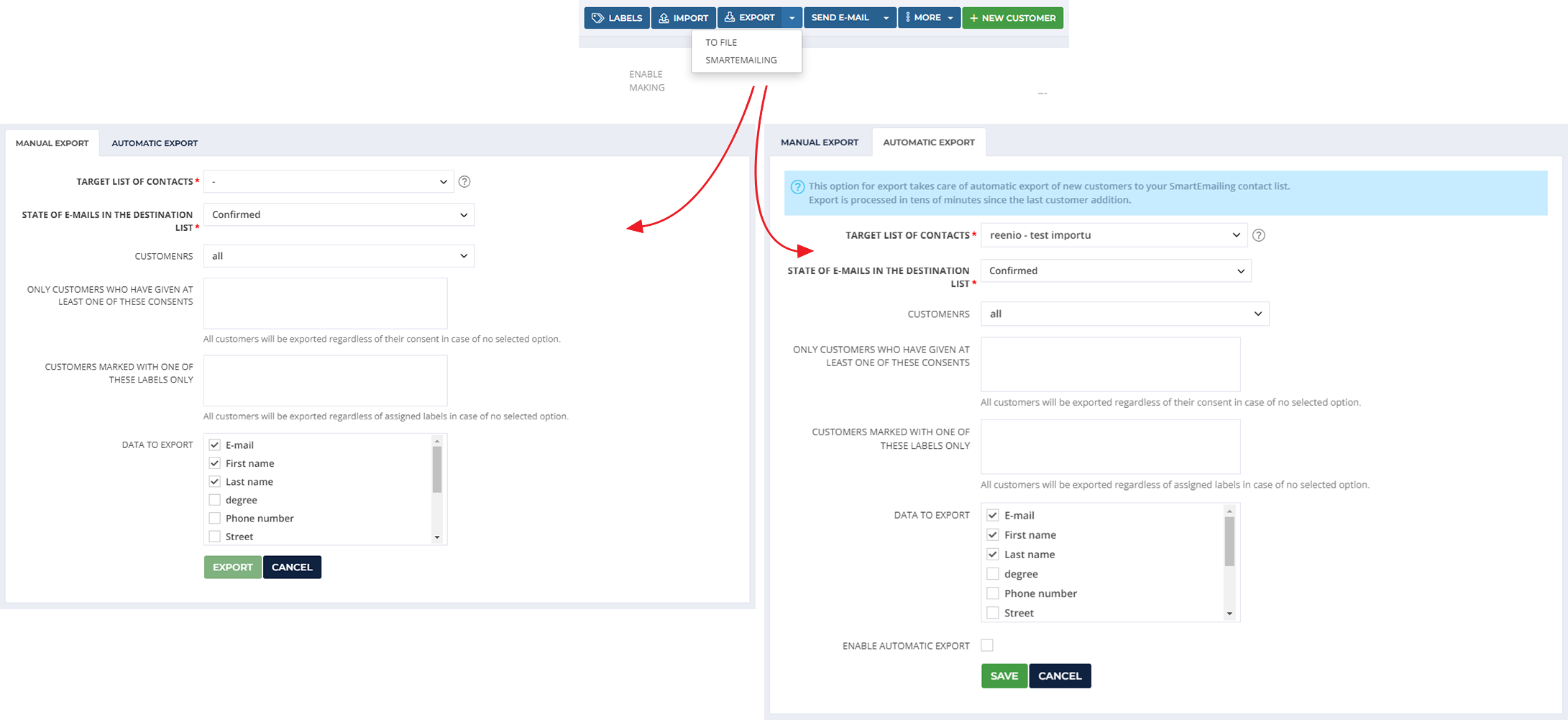
Manual export
This export allows one-time transfer of your customers' current contacts to the selected SmartEmailing contact list. You can also specify which contact group and data to export. If a customer already exists in the contact list (by e-mail address), the customer's information is only updated. Customers who do not have "Newsletter" checked are also exported, but their email is automatically set to "Unsubscribed".
Automatic export
This is useful when you want to keep your customers' contact lists up-to-date in SmartEmailing whenever a new customer registers or makes a reservation. Again, you can set which customer group and what data to export. If a customer already exists in the contact list (by e-mail address), the customer's details are updated. Customers who do not have "Newsletter" checked are also exported, but their email is automatically set to "Unsubscribed". Automatic export takes place in tens of minutes after adding a new customer.
This automated system is particularly useful in conjunction with Smart SmartEmailing Campaign. Thanks to this automated link, you can easily send information e-mail to newly registered customers, which they receive automatically according to a wide range of settings. This e-mail may contain information about the services offered, conditions and rules of use of the services, discount code for a new customer, etc. This link will allow you to use the marketing potential of linking the reservation system and mailing platform to the fullest.
Own marketing reports
The integration of SmartEmailing brings even more possibilities. Using so-called custom messages it is possible to define events that trigger the sending of a specific e-mail (template or questionnaire) directly from the SmartEmailing system. This is especially useful when you want to communicate with the customer automatically and beyond the normal system messages. To learn more about using your own messaging and SmartEmailing, see "Communication with customer".
Smartsupp
Communication with customers is one of the most important business activities. Effective communication is a prerequisite for successful business, not only in the world of the internet. The reenio reservation system is a typical on-line tool that saves time for both customers and the service provider itself. Although the system is designed and developed to be clear, simple and usable, there can always be situations where the customer is not sure, is unsure or just needs to cope with the choice of services offered and filling in the required information. And at that moment it is advisable to use on-line chat Smartsupp.
On-line chat is a simple assistant that enables direct and fast communication between the site visitor (customer) and the support staff on the booking page (or any website). Because it is possible to start chat immediately and there is no need to search for any contact information (Smartsupp application is always available throughout the visit to the reservation page), this greatly reduces the barrier when the customer hesitates to address and ask a question.
Possibilities of using Smartsupp
- Very fast and simple way start customer communication - just type your question into the chat form.
- Option off-line query processing - if operator is unavailable, the system will still allow the query to be received, recorded and e-mailed to the operator.
- Communication overview and use of on-line chat - the Smartsupp application allows you to browse the communication history, up to the level of specific users.
- Automatic communication - it is possible to set automatic messages, which encourages the visitor to communicate or informs the visitor that the query will be processed later.
- Mobile App - to process queries from your customers, you don't have to sit at your computer, but you can conveniently and quickly respond to them from the mobile app on the iPhone and Android platforms.
- ... and much more.
If your customers have available support and assistance directly when booking your services, they will certainly be more satisfied and more motivated to use them.
On-line chat on the reservation page opens up new possibilities of support and communication with your customers. Whenever your customers have a problem or question about a reservation, they can contact support very quickly and get the information they need. Similarly, this form of communication is also effective for you, because you can respond according to your time possibilities and current situation.
If your customers have available support and assistance in booking your services, they will certainly be more satisfied and more motivated to use them.
I want to know more about Smartsupp
Link settings
Linking respectively integrating Smartsupp online chat into the reservation page is very simple. First of all, you must have a Smartsupp account.
In the Smartsupp system administration you can set a number of parameters and features of how the on-line chat will work (working hours, automatic messages, etc.). In the Settings - Chat BOX menu, you will find the Smartsupp key you need to enter in the third party tools integration settings in reenio.
Settings - General settings - Third-party
To set up this tool in reenio, go to Settings - General Settings - Third Parties, where you enter the Smartsupp key and you can also specify how to integrate and display the chat window on the reservation page. You can then activate or deactivate the display of the chat box on your reservation page.
Retenzio
The Retenzio cloud system is a tool focused on customer retention and encouraging repeat use of services. The reenio booking system is one of the directly supported solutions, which makes it possible to leverage booking system data for additional follow-up activities and processes. Through these complementary processes implemented by Retenzio, it is possible to increase customers’ repeat usage of services and thereby support their satisfaction and retention.
Retenzio is generally suitable for all services that require regular communication with clients. More information can be found at www.retenzio.com.
 booking system